
Customize the lesson material
Last updated on 2026-03-02 | Edit this page
Estimated time: 12 minutes
Overview
Questions
- What is the purpose of customizing the material?
- What are the different ways of customizing the material?
- Which best practices apply to customizing the material?
Objectives
- Understand the purpose of customizing the material.
- Use the customization method best suited to a specific purpose.
- Apply best practices when customizing the material.
The customization infrastructure is not intended for changing or adding significant amounts of additional course content. You should always consider whether the customizations you make serve to reduce cognitive load during and after the workshop.
Creating a repository for the customizations
The customization framework for the Introduction to HPC lesson extends the standard Carpentries Workbench infrastructure and works by using a base template and a customization template. These templates are directories containing configuration and content source files that will be used when rendering the lesson material.
Customization can be done in two different ways:
- By redefining a variable that is used in one or more places of the episode markdown, or
- By providing a snippet file with the same name as the one used in the episodes.
The base template defines all variables and
snippets used in the episodes. The customization
template can then selectively override any of those variables.
The lesson material already provides a complete base template with
HPCC_MagicCastle_slurm, so you only need to create a
customization template for your local adaptations. Variables are often
small strings of one or a few words, representing hostnames, commands,
arguments, URLs, and similar items. Snippets are larger text files that
are inserted as-is into the Markdown source during the rendering
process.
Generating a customization directory
The customization files reside in the
episodes/files/customization subfolder. There you can find
two subdirectories:
-
HPCC_MagicCastle_slurm, the base template from HPC Carpentry, and -
Ghastly_Mistakes, an example customization template.
We recommend using HPCC_MagicCastle_slurm as the base
for your customization. It contains the customization for a cloud-based
cluster installation, based on Magic Castle using the Slurm scheduler.
The files in Ghastly_Mistakes/ provide an example
customization for reference. They contain values different from the base
template, and are sometimes used to check whether the customization
works in general.
To start your first customization, create a new subdirectory for the configuration and snippets.
Add a minimal configuration file _config_options.yml to
this directory, containing the variable snippets, set to
the directory name of your customization:
And create an empty snippets directory, to be populated
with more customizations later:
Enabling the customization in the GitHub Actions workflow
To enable the use of this customization, set the environment variable
HPC_CARPENTRY_CUSTOMIZATION to the location of the
customization configuration during the build process.
Local builds
For local builds, set the variable in the shell from which you start R to build the lesson material (or from a Terminal if working in an IDE).
SH
$ export HPC_CARPENTRY_CUSTOMIZATION=/full/path/to/episodes/files/customization/YourCustomizationDirectory/_config_options.ymlCurrently, the standard build process does not recognize changes in
the customization configuration or the snippets. To get a clean build
after changing anything in the customization, you need to reset
the site by calling sandpaper::reset_site() and
trigger the build with
sandpaper::build_lesson().
On GitHub
To set this during the GitHub Actions workflow, you need to select Secrets and variables in the left menu of the Settings tab. Then you select Actions and select the Variables tab.
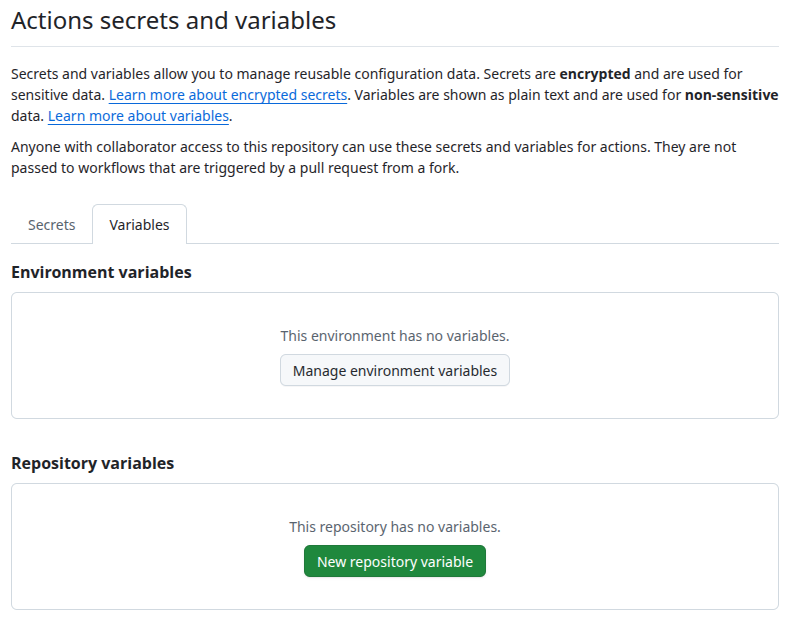
There you set HPC_CARPENTRY_CUSTOMIZATION as a
Repository variable.
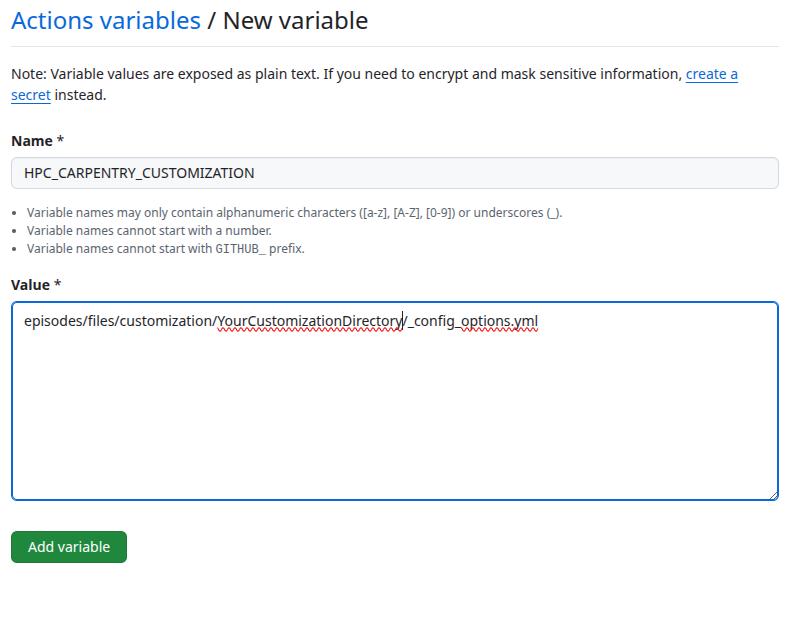
This will then be passed to the build workflow.
Customize via in-paragraph variables
You can modify individual variables in the
_config_options.yml file of your customization. You do not
have to redefine all variables, so your customization config can list
only the variables you want to change in the lesson.
For example, you could adjust the hostname of the login node
(referred to with config$remote$login in the lesson source)
by adding the following to your _config_options.yml:
The hierarchy in variable names is important (e.g. login
within remote, above). Please ensure that you retain the
variable hierarchy for the variables you do redefine.
Customize via ‘snippets’
The following snippets are currently used in the episodes.
You can generate the current list of supported snippets in the
HPCC_MagicCastle_slurm/snippets directory yourself like
this:
OUTPUT
cluster/queue-info.Rmd
cluster/specific-node-info.Rmd
scheduler/basic-job-status.Rmd
scheduler/runtime-exceeded-output.Rmd
scheduler/using-nodes-interactively.Rmd
scheduler/print-sched-variables.Rmd
scheduler/basic-job-script.Rmd
scheduler/option-flags-list.Rmd
scheduler/terminate-job-cancel.Rmd
scheduler/job-with-name-status.Rmd
scheduler/terminate-job-begin.Rmd
scheduler/terminate-multiple-jobs.Rmd
scheduler/runtime-exceeded-job.Rmd
parallel/one-task.Rmd
parallel/eight-tasks.Rmd
parallel/four-tasks.Rmd
modules/python-executable-dir.Rmd
modules/module-load-python.Rmd
modules/software-dependencies.Rmd
modules/missing-python.Rmd
modules/available-modules.Rmd
resources/account-history.Rmd
The files in HPCC_MagicCastle_slurm will always remain
the reference customization in the repository. The subdirectories of the
snippet files correspond to the episode names they are used in.
They are usually the output from corresponding commands in the episodes and should be regenerated with the corresponding commands on the HPC system you customize for.
Create the files (and subdirectories) for the snippets that you want
to override. For example, to add your own snippet with the
output of sbatch for the scheduler episode
(page
source), create a snippets/scheduler directory and add
a basic-job-script.Rmd file with your customized
contents:
This snippet will now be used in your lesson instead of the default
from the HPCC_MagicCastle_slurm configuration.
When we have finished, our
episodes/files/customization/YourCustomizationDirectory/
directory has the following contents:
OUTPUT
YourCustomizationDirectory
├── _config_options.yml
└── snippets
    └── scheduler
        └── basic-job-script.Rmd
Contents of _config_options.yml:
Contents of snippets/scheduler/basic-job-script.Rmd:
Make More Customizations
Repeating the steps above, make some more customizations to your fork
of hpc-intro.
- Customize the shell prompt displayed in the lesson for the
local and remote systems, by overriding the values of
two more variables in
_config_options.yml. - Modify a copy of the template at
episodes/files/customization/HPCC_MagicCastle_slurm/snippets/modules/available-modules.Rmdto include some output formodule availon your cluster, then save it to your ownsnippets/modules/available-modules.Rmdfile. Which page of your lesson will this change affect?
-
Add customized prompts to
YourCustomizationDirectory/_config_options.yml: -
Create a new directory,
YourCustomizationDirectory/snippets/modules, and add a new file to it,available-modules.Rmd:MARKDOWN
```bash
`r config$remote$prompt` module avail | less
```

```output
~~~ /cvmfs/pilot.eessi-hpc.org/2020.12/software/x86_64/amd/zen2/modules/all ~~~
MyCustomModule/3.16.4-GCCcore-x.y.z             Modulezz/v2026-custom

[removed most of the output here for clarity]

Where:
L:        Module is loaded
D:        Default Module
Aliases exist: foo/1.2.3 (1.2) means that
            "module load foo/1.2" will load foo/1.2.3

Use "module spider" to find all possible modules and extensions.
Use "module keyword key1 key2 ..." to search for all possible modules matching
any of the "keys".
```
When built into your lesson, this snippet will be inserted into the Listing Available Modules subsection of the Accessing software via Modules episode of the lesson (location in the central version of the lesson for reference).
Adding additional content
Sometimes you may need to add additional content to the lesson. The current lesson curriculum has been tried and tested to fit into the 1-day (two half-days) schedule. Adding significant content to the lesson material will likely skew the time needed to teach the lesson. You should keep additional content to a minimum, expand the timeframe, and/or remove other content from the workshop.
- Any divergence from the core material introduces a maintenance debt.
- Use the recommended customization methods.
- Do not make significant additions to the material without adjusting the time available.
- Only customize what helps the learner match the in-class and out-of-class experience.